
How to Automate Report Scheduling With Logi Report

Simba helps builders embed trusted intelligence into every product, so they can deliver consistent, trusted answers in a world running on AI.

It’s no secret that businesses everywhere are striving to use AI to automate time-consuming or repetitive tasks. By far one of the most time-consuming tasks business people face is reporting. Whether due to custom exports draining developer time, BI tools that can’t handle document output, or driver maintenance wasting time and focus, reporting can be draining to an organization’s most valuable resources.
With automated report scheduling, though, this lengthy process can be streamlined. Automated report scheduling is the process of configuring a reporting system to generate and regularly distribute reports to designated recipients, all with minimal manual intervention. Taking it one step further, in embedded reporting applications, automated scheduling extends this capability directly to end users. Practically speaking, this allows users to configure their own delivery preferences within the application they already use, without requiring support from a development or IT team. But what does this look like in practice, and why does it matter beyond saved time?
Why Automated Report Scheduling Matters
Manual report distribution is one of the most underestimated costs and potential risks in business intelligence. As the number of reports, recipients, and delivery frequencies grows, the process of exporting the correct data, formatting it appropriately, and delivering it to the right people at the right time becomes a significant operational burden.
The consequences extend beyond wasted time, though. Bottlenecks are created when the person responsible for distribution is unavailable. Beyond that, manual distribution introduces risk. If the wrong report, the wrong date range, or an outdated dataset reaches a decision-maker at a critical moment, your business strategy could suffer, and your competitors gain an advantage.
For ISVs embedding reporting into their products, the stakes are even higher. End users who cannot meet their own reporting needs create support tickets. Applications that require IT intervention for routine report delivery create friction that competitors can easily exploit. Automated report scheduling through platforms like Logi Report eliminates these problems and returns valuable time back to the people who need it most.
How to Configure Automated Report Scheduling in Logi Report
Logi Report provides end users with a full scheduling and distribution interface directly within its embedded application. This means that beyond the initial setup, no developer involvement is required. Here’s an example of how software teams can use Logi Report to schedule reports to automatically run on daily, weekly, monthly, or custom event schedules:
Step 1: Access the Interface
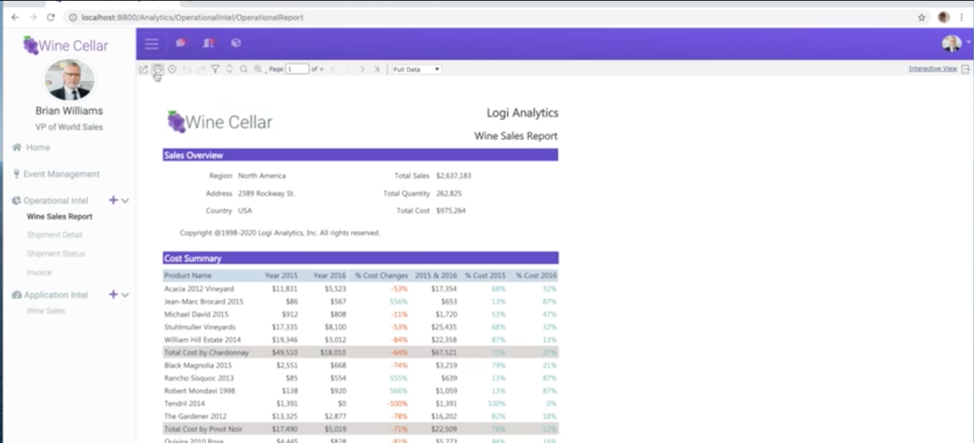
From within any report in Logi Report, the scheduling interface is accessible from the report toolbar. The toolbar provides options to export, print, or schedule distribution of the current report. Selecting the schedule option opens the scheduling configuration panel, from where you can configure all delivery settings. Below is an example of a typical report that would get scheduled. In this case, it is a quarterly sales report, but if you wanted to see this report more than once a quarter, you could schedule that as well.
Step 2: Name the Schedule and Set Your Delivery Frequency
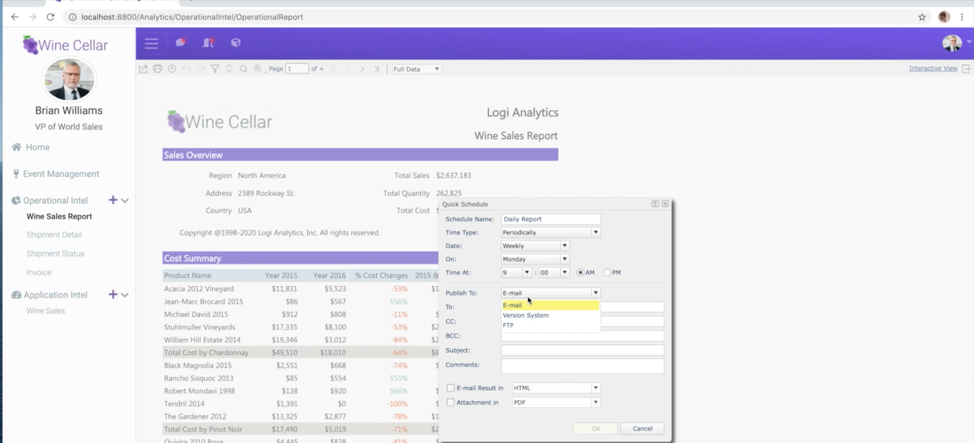
Each scheduled report requires a name that identifies it within the user's schedule list. Once the schedule is named, users can configure delivery frequency from the following options:
Daily: the report will run and be delivered every day at a specified time
Weekly: the report will run on one or more specified days of the week at a specified time
Monthly: the report will run on a specified day of the month at a specified time
Custom event: the report will run based on a configurable event trigger, allowing data-condition-based and time-based scheduling
For example, a weekly sales report might be configured to deliver every Monday at 9:00 AM as the work week begins. Similarly, a daily operations report might be configured to deliver at 6:00 AM, 2:00 PM, and 10:00 PM to align with shift start times.
Step 3: Select a Delivery Method
Logi Report supports three delivery methods, each suited to different distribution requirements:
Email delivery: This is the most common delivery method. With this delivery method, reports are generated and sent as email attachments to a specified recipient list. The email subject line and body are both configurable, allowing administrators and end users to include context, instructions, or commentary in addition to the report itself.
Email delivery is the best choice for: Executive distribution, team-wide reporting, customer-facing delivery, or if the majority of recipients consume the report directly, rather than processing it
FTP delivery: This delivery method ensures that reports are deposited in a specified FTP location, including password-protected and secure FTP sites. Reports are made available within a consistent file path and accessed on a defined schedule.
FTP delivery is the best choice for: System-to-system data transfer, automated downstream processing, integration with data warehouses or ETL pipelines, and scenarios where reports are consumed by processes rather than people
Version control delivery: With this delivery method, reports are generated and saved to a versioning system, maintaining a historical record of each report that has been run. Every version is timestamped and accessible, allowing users to compare current and historical reports, audit changes over time, and retrieve prior versions on demand as needed.
Version control delivery is the best choice for: Compliance and audit requirements, longitudinal analysis, board and executive reporting where historical context is required, or any instance where demonstrating metric changes over time is part of the report's purpose
Step 4: Configure Your Recipients
For email delivery, recipients are added to a configurable list within the scheduling interface. Logi Report supports the following recipient configuration options:
Static recipient lists: Fixed list of email addresses receives each scheduled delivery
Role-based distribution: Recipients defined by their role within the application
For FTP and version control delivery, recipient configuration is replaced by location configuration. Under this condition, you will need to specify the target directory, authentication credentials, and file naming convention for each scheduled report delivery.
Step 5: Select Your Export Format
Logi Report supports multiple export formats for scheduled delivery, each suited to different report consumption requirements:
Format | Best for |
Executive distribution, formal reports, pixel-perfect banded reports, or print-ready layouts. | |
Excel (functional workbook) | Interactive analysis or reports that recipients will edit, filter, or pivot after receiving. |
Excel (raw data export) | Downstream processing, data warehousing, or ETL integration. |
CSV | System integration, raw data transfer, or lightweight downstream processing. |
HTML | Web-based display, email body embedding, or browser-accessible delivery. |
Selecting the appropriate format requires understanding how recipients will use the report after receiving it. A VP reviewing a quarterly summary will typically prefer a PDF. On the other hand, a financial analyst who plans on pivoting and filtering data after receiving it will typically prefer a functional Excel workbook. A downstream system ingesting a report’s data will typically require a CSV.
Step 6: Review and Activate the Schedule
After configuring frequency, delivery method, recipients, and format, you can review and activate your schedule. Active schedules appear in your schedule list within Logi Report, where they can be paused, modified, or deleted, all without developer involvement.
For additional visibility into distribution activity and the ability to intervene, administrators with appropriate permissions can view and manage all active schedules across users within Logi Report.
Save Time With Logi's Report Automation
Reporting can be a drain on resources, but it doesn’t have to be. With the correct embedded analytics tools, reporting can stay valuable without sacrificing your most valuable resource — time. Automated scheduling of reports is another way Logi goes beyond report creation to a more sophisticated operational report experience.
Ready to see how Logi can transform your organization’s reporting process through automated reporting? Sign up for our free Logi demo today.
Get a Demo
Logi enables you to generate and distribute precise reports at scale without coding or leaving the app.