
Build a Custom ODBC Driver as a Server

insightsoftware is the most comprehensive provider of solutions for the Office of the CFO. We turn information into insights, empowering business leaders to strategically drive their organization.

With the Simba Technologies SimbaEngine SDK™, you can build your own custom ODBC, OLEDB, JDBC, or ADO.NET driver to connect your data source to any application, but did you know that you can create a driver that runs on a server with the switch of a configuration setting? You can convert a SimbaEngine SDK ODBC driver into a server by switching build configurations in Visual Studio within Windows or adding BUILDSERVER=exe to your makefile in Linux, then configuring a registry or INI file. Keep reading to learn how you can build your own custom driver as a server yourself!
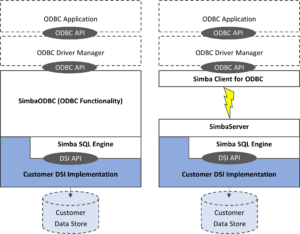
To begin, let us examine the components of a server built using the SimbaEngine SDK. A Simba-based server is a Data Store Interface (DSI) implementation running as its own application, accepting connections from ODBC, OLEDB, JDBC, or ADO.NET clients provided by Simba.
Benefits of Using a Server In Place of a Standalone Driver
There are several benefits to using a server. For instance, you can position your implementation as close as possible to your data source, resulting in faster processing and reduced data transmission to client drivers. Additionally, using a server instead of a standalone driver allows you to leverage Simba’s own ODBC, JDBC, and ADO.NET clients to connect to your data source. These clients are optimized by our team of expert engineers to provide the ease of use and performance needed to connect your data source to any application.
Your only responsibility is to implement and maintain your DSI implementation while we handle the communication between your server driver and our clients. Furthermore, when you need to update your DSII (DSI Implementation), you can simply update it on the server rather than distributing an update to all of your clients.
How to Build a Custom ODBC Driver as a Server: A Step-by-Step Guide
Step 1: Implement your DSII
To build a server, you need a previously implemented DSI to communicate with your data source and have it built and functioning as a single-tier ODBC driver. Debugging a standalone DSII is easier than debugging a server DSII, which can significantly reduce development time. To get started, use the Quickstart sample included in the SimbaEngine SDK.
Step 2: Build Your Server to Run on Windows or Linux
Once you have an implementation of your DSII, you can build your server to run on Windows or Linux environments.
For a Windows-based server:
Open your Visual Studio project and access the build configurations.
Look for configurations that include the word “Server.” These configurations will build your DSII as a server in either debug or release modes, and you can choose to bind it statically or dynamically. Each of these configurations will build the driver as an executable rather than the standard DLL file, although you also have the option to build your server as a DLL and have it act as a slave to another process.
For a Linux-based server:
Add BUILDSERVER=exe to the command line when building your driver from the standard makefiles.
Step 3: Configure Your Server
Once you have built the server, the next step is configuration. Where your settings live depends on your operating system, as well as what you’ve defined as your DSII branding.
Windows configuration:
Settings are stored in the registry. Using the Quickstart driver, navigate to: HKLM\SOFTWARE\Simba\Quickstart\Server
Of note: the branding is the portion between HKLM\SOFTWARE\ and \Server.
Branding definitions:
#define DRIVER_WINDOWS_BRANDING "Simba\\Quickstart"
Linux configuration:
Settings for Linux configurations are stored in an INI file: simbaserver.quickstart.ini
Branding definitions:
// Linux Branding for the driver: #define DRIVER_LINUX_BRANDING “simba.quickstart.ini”
// Linux Branding for the server: #define DRIVER_WINDOWS_BRANDING “simbaserver.quickstart.ini”
Sample Configuration Files
To help you get started, deploy the Quickstart sample, which includes the following configuration templates:
Windows: “.reg” files
Linux: “.ini” files
You can edit these files and use them for your own server configuration.
Configuration Subsections
The settings are organized in a section called “Server” with multiple subsections for specific server settings, including:
Subsection | Purpose of Subsection |
Network | Connection and port settings |
Admin | Administrative controls |
Buffer | Data buffer options and memory |
Threads | Thread management settings |
Each of these sections has various configuration settings you can customize. The main settings you need to change are:
ErrorMessagesPath under the Server subsection, which controls the path where the error messages are located.
ListenPort under the Network subsection, which controls the port the server listens on for client connections.
For more detailed information on the server configuration settings, refer to the Simba Client/Server Developer Guide. Once you have finished the configuration, you can launch the executable and connect to the server using one of the provided clients.
Congratulations! You have built your stand-alone ODBC driver as a complete server with the switch of a configuration. Curious as to what else insightsoftware’s SimbaEngine SDK can do? Explore our Simba Data Connectors or try an instant demo today.